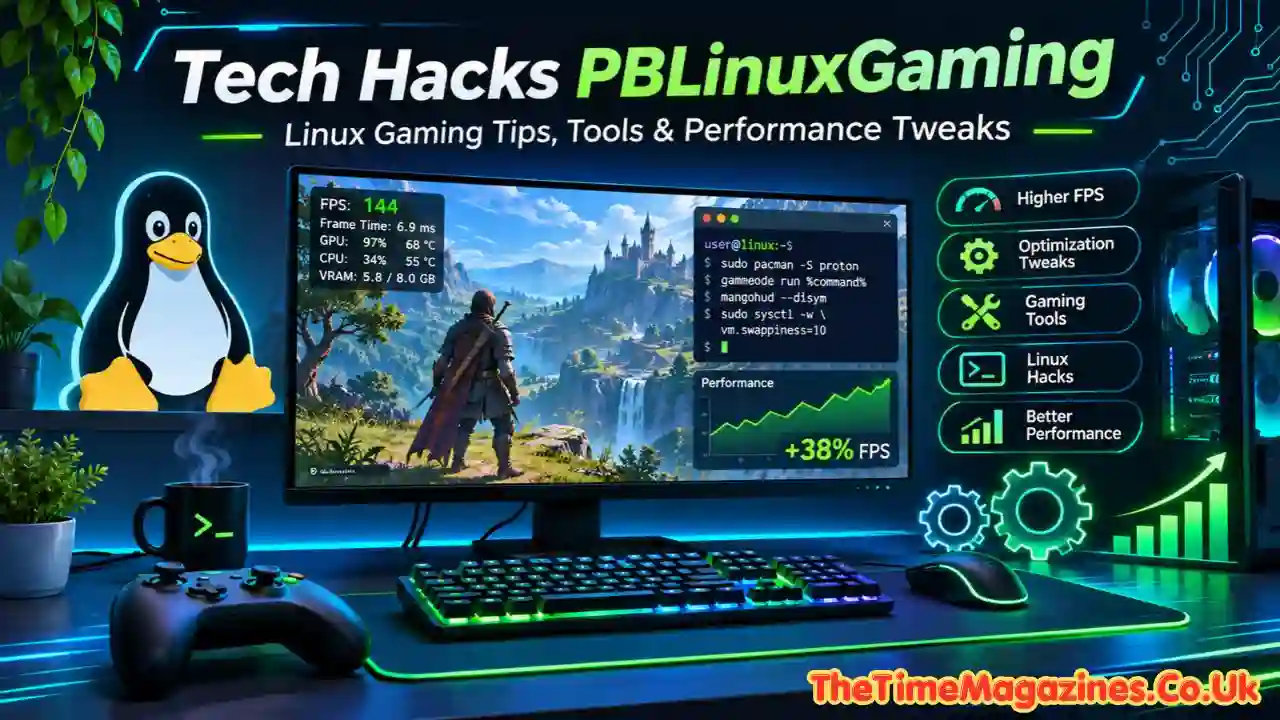
Tech hacks PBLinuxGaming refers to practical Linux gaming tips, performance tweaks, and technology insights associated with PBLinuxGaming and PlugboxLinux-related discussions. The focus is on helping gamers improve frame rates, reduce stuttering, resolve compatibility problems, and get more from their existing hardware.
You don’t need to be a Linux expert to benefit from these techniques. Tools such as Steam Proton, GameMode, MangoHud, and Lutris can make gaming on Linux easier to manage, while a few carefully chosen settings can noticeably improve how supported games run.
The trick is knowing which changes matter, which depend on your hardware, and which popular gaming hacks are better left alone.
What Is Tech Hacks PBLinuxGaming?
Tech Hacks PBLinuxGaming is a search term associated with Linux gaming optimisation, troubleshooting, software tools, and emerging gaming technologies. It brings together practical advice for running games more reliably on Linux-based systems.
The phrase is often discussed alongside PlugboxLinux-related technology content, including Linux game compatibility, graphics improvements, and gaming performance.
It is important to understand that Tech Hacks PBLinuxGaming is not a verified standalone application or a special gaming operating system. Think of it as a collection of techniques and information that can help you build a better Linux gaming setup.
The main areas covered include:
- Performance optimization: Reducing unnecessary system load and improving frame consistency.
- Game compatibility: Running supported Windows games through Linux compatibility tools.
- Graphics configuration: Choosing appropriate drivers, rendering settings, and display options.
- Troubleshooting: Identifying crashes, freezing, audio issues, and launch errors.
- Technology awareness: Following developments in Linux gaming software and hardware.
Whether you’re using Ubuntu, Fedora, Linux Mint, or another distribution, many of these principles apply.
Why Tech Hacks PBLinuxGaming Matters for Linux Gamers
Linux offers something many PC gamers appreciate: control over how their systems operate.
You can choose your desktop environment, configure background services, select compatible graphics drivers, and customize the software used to launch games.
However, that flexibility also introduces challenges.
A game might run smoothly on one Linux distribution but struggle on another. A driver update may resolve a graphics issue, while a different version of Proton might be necessary to launch a particular Windows title.
That’s where practical Linux gaming knowledge becomes valuable.
Better Performance Without Buying New Hardware
Before spending money on a graphics card, it’s worth checking whether inefficient settings are holding your system back.
Lowering demanding visual effects, enabling a supported upscaler, or resolving a driver problem may improve your experience without replacing any components.
These changes aren’t guaranteed to increase FPS. Their effectiveness depends on the game, graphics hardware, and the source of the slowdown.
Greater Control Over Game Compatibility
Linux gaming is no longer limited to games with native Linux versions.
Compatibility technologies such as Wine and Proton allow many Windows games to run on Linux.
Still, not every game works perfectly. Anti-cheat software, digital rights management, game launchers, and unsupported features can prevent some titles from running.
Understanding these limitations can save hours of unnecessary troubleshooting.
Smoother and More Consistent Gameplay
High FPS doesn’t always mean a game feels smooth.
For example, a game running at an average of 100 FPS can still feel unpleasant if individual frames take unusually long to render.
Effective optimization addresses frame-time consistency, input response, and stability instead of focusing exclusively on headline FPS numbers.
15 Practical Tech Hacks PBLinuxGaming Tips to Improve Your Gaming Experience
The most useful gaming hacks are often surprisingly simple. Start with changes you can measure and reverse before moving on to advanced system adjustments.
1. Keep Your Linux System and Graphics Drivers Updated
Outdated graphics drivers can cause compatibility problems, rendering glitches, and performance issues.
Modern Linux games depend on several components working together, including graphics drivers, the Linux kernel, and supporting graphics libraries.
On Ubuntu or Debian-based systems, you can update installed packages using:
sudo apt update
sudo apt upgrade
After updating, restart your system when necessary.
For NVIDIA graphics cards, use a supported proprietary or open driver appropriate for your hardware and distribution. AMD and Intel graphics commonly use the Mesa graphics stack.
Practical tip: Prefer your distribution’s supported driver installation method over random scripts found online. Newer drivers are not automatically better for every system.
2. Use GameMode for Temporary Performance Optimizations
GameMode is an open-source Linux utility developed by Feral Interactive.
It allows supported games to request temporary system optimizations, which may include CPU scheduling, process priority, and other performance-related settings.
On supported Ubuntu-based installations, you can install it using:
sudo apt install gamemodeOnce installed, open a game’s properties in Steam and add the following launch option:
gamemoderun %command%GameMode can be useful when power-management behavior or system scheduling affects performance.
However, if your system is already running efficiently, you might see little or no improvement.
3. Enable Steam Proton for Windows Games
One of the most useful tech hacks for Linux gaming is learning how Proton works.
Developed by Valve, Proton combines Wine and other technologies to help Windows games run on Linux through Steam.
To configure Proton:
- Open Steam and navigate to its compatibility settings.
- Enable Steam Play or compatibility support where your Steam version requires it.
- Select a supported Proton version.
- Install the game and attempt to launch it.
- If the game fails, check its compatibility reports before changing versions.
Steam’s interface and compatibility defaults can vary between versions.
For information about individual games, consult ProtonDB, where users report compatibility experiences and troubleshooting details.
Remember: Proton improves compatibility, but it does not guarantee that every Windows game will work.
4. Monitor FPS and Frame Times With MangoHud
It’s difficult to improve performance when you don’t know what’s causing the problem.
MangoHud is a performance overlay for Vulkan and OpenGL applications that can display useful information, including:
- Frames per second
- Frame times
- CPU and GPU utilization
- Hardware temperatures
- Memory usage
- Selected performance metrics
On supported Debian or Ubuntu systems, install it with:
sudo apt install mangohudFor compatible Steam games, try this launch option:
mangohud %command%If the overlay doesn’t appear, consult MangoHud’s documentation for your graphics API, installation method, and game launcher.
Why Frame Times Matter
A frame time measures how long the system takes to produce a frame.
At 60 FPS, the average frame interval is approximately 16.7 milliseconds. At 120 FPS, it’s roughly 8.3 milliseconds.
Large, irregular spikes can indicate stuttering even when average FPS looks healthy.
Monitoring these values helps identify whether your changes improve actual gameplay.
5. Adjust Graphics Settings Before Changing System Files
Not every performance issue requires a terminal command.
In many cases, the game’s graphics menu offers the safest and most effective starting point.
Try adjusting these settings first:
- Shadows: Reduce from Ultra to High or Medium.
- Reflections: Lower demanding screen-space or ray-traced reflections.
- Volumetric effects: Reduce fog, clouds, and lighting effects.
- Resolution scale: Lower slightly if the GPU is struggling.
- Texture quality: Match the setting to available video memory.
- Frame-rate limit: Choose a sustainable target for more consistent performance.
Change one setting at a time, then test the same game scene.
This makes it easier to understand which adjustment actually helped.
6. Use Vulkan When the Game and Hardware Support It
Vulkan is a low-overhead graphics API used by many modern games and Linux gaming tools.
It can help applications communicate efficiently with supported graphics hardware.
Vulkan also plays an important role in technologies such as DXVK and VKD3D-Proton, which translate certain DirectX workloads for use on Linux.
To check basic Vulkan support on a Debian or Ubuntu-based installation, you can install the Vulkan utilities package:
sudo apt install vulkan-toolsThen run:
vulkaninfo --summaryIf Vulkan isn’t functioning correctly, investigate your graphics driver installation before attempting advanced gaming tweaks.
Don’t assume Vulkan will outperform every other rendering option. Results depend on the game and its implementation.
7. Close Unnecessary Background Applications
Linux systems can run multiple processes efficiently, but background applications still consume resources.
Browsers with many open tabs, software updates, recording programs, and other demanding applications may compete with your game for CPU time or memory.
Before launching a resource-intensive game:
- Close applications you don’t need.
- Pause unnecessary downloads.
- Check system resource usage.
- Avoid running multiple game launchers unnecessarily.
- Leave essential system services running.
You can use tools such as top, htop, or your desktop’s system monitor to inspect resource usage.
Avoid disabling unfamiliar services simply because an online tutorial recommends it.
8. Use Lutris to Manage Games Outside Steam
Not every PC game is distributed through Steam.
Lutris is a gaming platform that helps organize and launch games from different sources using suitable runners and configurations.
It can be useful for games requiring Wine or other supported software environments.
You may also encounter the Heroic Games Launcher, which provides access to supported Epic Games Store, GOG, and Amazon Prime Gaming libraries.
Choosing a launcher depends on your game library and preferred workflow.
For many users, Steam, Lutris, and Heroic cover a broad range of everyday gaming needs without requiring complicated manual installation.
9. Check Whether Your GPU Is Being Used Correctly
Some laptops have two graphics processors: integrated graphics for everyday tasks and a dedicated GPU for demanding applications.
A game running on the wrong GPU may perform significantly worse than expected.
Check your system’s graphics settings and confirm that demanding games use the appropriate GPU.
On supported hybrid-graphics configurations, launch options or system utilities can help select the desired processor.
The exact method differs between NVIDIA, AMD, Intel, and Linux distributions.
Practical tip: Verify GPU utilization through a monitoring utility before assuming a game has a graphics-driver problem.
10. Reduce Stuttering by Understanding Shader Compilation
Shader compilation is one reason games sometimes pause briefly during gameplay.
A game may need to prepare graphics instructions when encountering new environments, effects, or materials.
This work can produce temporary frame-time spikes.
Possible improvements include:
- Keeping graphics drivers updated.
- Allowing supported shader pre-caching features to operate.
- Avoiding unnecessary shader-cache deletion.
- Checking known game-specific problems.
- Keeping enough free storage for caches and game files.
Clearing a shader cache can occasionally resolve corruption, but deleting it routinely may force compilation work to happen again.
11. Use Upscaling Technologies When Available
Upscaling can reduce the number of pixels a game needs to render internally while producing an image at a higher output resolution.
Common technologies include AMD FSR, NVIDIA DLSS, and Intel XeSS.
Support depends on the game, graphics hardware, driver, and selected technology.
For compatible games, begin with an upscaling mode labeled Quality.
Compare image clarity, latency, and performance before switching to more aggressive settings.
Keep in mind that frame generation and traditional upscaling are different techniques. Generated frames can improve displayed frame rates without providing an equivalent reduction in input latency.
12. Improve Online Gaming Connection Stability
Not every form of gaming lag comes from your graphics card.
Online games can experience delays caused by network latency, packet loss, unstable Wi-Fi, or overloaded connections.
Try these basic fixes:
- Use Ethernet when practical.
- Pause large downloads while gaming.
- Check whether other devices are saturating your connection.
- Select an appropriate game server region.
- Measure packet loss and latency, not just download speed.
A faster internet package won’t necessarily solve poor routing or an unstable wireless connection.
Separating network problems from graphics problems is one of the simplest ways to avoid unnecessary system changes.
13. Optimize Linux Gaming on Low-End PCs
Older computers can still provide enjoyable gaming experiences when expectations match the hardware.
Start by choosing games with manageable system requirements.
Then consider:
- Lowering resolution or render scale.
- Using Medium or Low graphics presets.
- Limiting FPS to a stable target.
- Closing unnecessary background programs.
- Checking for thermal throttling.
- Installing games on an SSD when available.
A lightweight desktop environment may reduce some system overhead, but switching desktops is not guaranteed to produce a meaningful FPS increase.
For low-end gaming, consistent performance and responsiveness are usually more valuable than chasing the highest possible frame rate.
14. Avoid Risky Kernel and Overclocking Tweaks
Advanced Linux tutorials sometimes recommend changing kernel parameters, disabling security features, or aggressively overclocking hardware.
These changes can introduce instability, overheating, or security risks.
Before attempting an advanced optimization, ask:
- What specific problem is this supposed to solve?
- Is the recommendation relevant to my hardware?
- Can I measure an improvement?
- Can I reverse the change safely?
- Is the advice supported by current documentation?
If the answer is unclear, leave the setting alone.
Good optimization is controlled troubleshooting, not changing as many system parameters as possible.
15. Benchmark Before and After Every Major Change
The best gaming hack is measuring results instead of guessing.
Choose a repeatable section of a game and record baseline performance before making changes.
Track average FPS, frame-time consistency, and the frequency of noticeable stutters.
For example, your test notes could look like this:
| Test configuration | Average FPS | 1% low FPS | Observation |
|---|---|---|---|
| Original settings | 58 | 39 | Frequent stutters |
| Reduced shadow quality | 64 | 48 | More consistent gameplay |
| Balanced graphics preset | 70 | 52 | Smoother overall experience |
These figures are illustrative, not measured PBLinuxGaming benchmark results.
For meaningful comparisons, use the same hardware, game version, scene, and test duration. Repeat tests when possible to reduce normal variation.
Best Tools for Tech PBLinuxGaming Optimization
Several established open-source tools can help gamers improve compatibility, monitor system behavior, or simplify game management.
| Tool | Main purpose | Best suited for |
|---|---|---|
| Steam Proton | Windows game compatibility | Steam users |
| GameMode | Temporary system optimizations | Performance tuning |
| MangoHud | FPS and hardware monitoring | Benchmarking and diagnostics |
| Lutris | Game installation and management | Multiple gaming sources |
| Heroic Games Launcher | Access to supported game libraries | Epic, GOG, and Prime Gaming users |
| Gamescope | Game-focused display compositing | Selected display and scaling scenarios |
| DXVK | Direct3D 8/9/10/11 translation to Vulkan | Compatible Windows games |
| vkBasalt | Vulkan post-processing | Graphics customization |
These tools solve different problems. Installing all of them won’t automatically make your games faster.
For a beginner, Steam, Proton, and MangoHud are often sensible starting points. Add specialized tools only when you have a reason to use them.
How to Set Up a Linux Gaming System Step by Step
If you’re new to Linux gaming, a simple setup process is more reliable than collecting dozens of optimization scripts.
Step 1: Choose a Supported Linux Distribution
Ubuntu, Fedora, Linux Mint, and other actively maintained distributions can serve as starting points.
Your choice should reflect hardware compatibility, update preferences, and familiarity with Linux.
Dedicated gaming-oriented distributions may provide additional conveniences, but they aren’t essential for enjoying Linux games.
Step 2: Install the Correct Graphics Drivers
Use your distribution’s recommended driver tools and verify that the GPU is recognized correctly.
For Vulkan-based games, ensure the necessary graphics components are available.
Step 3: Install Steam and Configure Proton
Install Steam through a supported distribution package or installation method.
Enable the necessary compatibility options and begin with a game known to work on Linux.
Step 4: Install a Performance Monitoring Tool
Configure MangoHud or another reliable monitoring utility.
Record your baseline performance before applying any optional optimizations.
Step 5: Test a Game With Default Settings
Launch a compatible game and check graphics quality, frame rates, audio, and input devices.
Don’t immediately apply every available optimization.
Step 6: Make Targeted Improvements
If the game runs poorly, identify the likely bottleneck.
Try graphics adjustments, driver troubleshooting, or a supported performance utility based on what the measurements show.
Step 7: Keep a Record of Working Configurations
Write down which settings work for individual games.
This makes recovery easier if a future update changes performance or compatibility.
Technology Trends PBLinuxGaming: What’s Changing in 2026?
Gaming technology continues to change, and Linux users benefit from improvements across several connected software projects.
When following technology trends PBLinuxGaming discussions, it’s more useful to understand the underlying technologies than to assume every new release offers an automatic performance upgrade.
Proton and Wine Compatibility Development
Proton and Wine continue to play major roles in making Windows software accessible on Linux.
Compatibility improvements can involve graphics translation, Windows API behavior, media handling, and game-specific fixes.
For gamers, this means a title that previously failed to launch may become playable after relevant software updates.
However, changes can also introduce regressions. Using the newest available build is not always the best choice for a game that already works reliably.
Vulkan and Modern Graphics Technology
Vulkan remains important to Linux gaming because it supports modern rendering techniques and compatibility technologies.
Graphics drivers, translation layers, and game engines all influence how effectively it performs.
A Vulkan-enabled game can benefit from a well-supported graphics stack, but actual performance depends on implementation and hardware.
Wayland and Display Improvements
Wayland has become an important part of modern Linux desktop development.
Compared with older X11-based environments, modern Wayland compositors offer different approaches to display management, synchronization, scaling, and variable refresh rates.
These features can matter for gaming, especially on systems with high-refresh-rate monitors or multiple displays.
Still, compatibility varies across compositors, drivers, and applications.
If you experience screen-sharing, input, or display problems, compare available sessions before making permanent changes.
Upscaling and Frame Generation
Upscaling and frame-generation technologies are increasingly relevant to demanding PC games.
They can help supported hardware produce a more responsive or visually smooth experience under appropriate conditions.
The trade-offs may include reduced image quality, artifacts, additional processing, or differences in input latency.
Evaluate the technology in the actual games you play rather than relying only on advertised performance figures.
Linux-Based Handheld Gaming
Linux-based handheld gaming systems have grown in popularity for streamlined PC gaming interfaces, controller support, power management, and compatibility tools.
Portable hardware also makes efficiency more important.
A stable frame-rate target and sensible power settings can be preferable to maximum performance when battery life and heat are concerns.
PBLinuxGaming Trend Updates: What Should Gamers Follow?
Not every software update deserves immediate installation.
The most useful PBLinuxGaming trend updates affect real compatibility, stability, security, or performance.
Prioritise these developments:
Graphics Driver Releases
Driver updates can introduce compatibility fixes, hardware support, and rendering improvements.
Read the release notes before installing a major update, particularly if your current setup is stable.
Proton Compatibility Changes
New Proton releases may address issues affecting individual games.
Check whether a specific update is relevant before switching away from a working configuration.
Gaming Launcher Improvements
Updates to Steam, Lutris, and Heroic can improve game installation, account integration, and compatibility management.
Launcher changes may also affect existing installations, making release notes useful when troubleshooting.
Linux Kernel and Desktop Updates
Kernel and desktop updates can influence hardware support, power management, scheduling, and display behavior.
Their impact on gaming isn’t always positive or negative across every system.
The most sensible approach is to follow maintained software projects, test relevant updates, and avoid unnecessary configuration changes.
Technology News PBLinuxGaming From PlugboxLinux: How to Evaluate Reports
Searches for technology news PBLinuxGaming from PlugboxLinux often lead to articles about Linux gaming developments, performance improvements, and emerging tools.
Such reports can help readers discover technology worth investigating, but their reliability depends on the evidence provided.
A useful gaming report should answer several questions.
Does the Report Identify the Hardware?
A performance comparison should specify relevant details such as CPU, GPU, memory, operating system, and graphics driver.
Without that context, the results may not apply to your computer.
Are the Game Settings Consistent?
Comparisons should use matching resolutions, graphics settings, and test conditions whenever possible.
Changing several settings at once makes it difficult to identify the reason for a performance difference.
Does It Explain the Limitations?
A credible report acknowledges compatibility problems and scenarios where a recommended tweak may not help.
Claims that a single command can dramatically improve every Linux game should be treated cautiously.
Can the Information Be Verified?
Whenever possible, compare gaming reports with original project documentation, release notes, and reproducible benchmarks.
For example, official Proton, GameMode, and MangoHud documentation provides more reliable technical detail than unsupported performance claims.
The key lesson: Use technology news to identify promising ideas, then verify whether those ideas are relevant to your own system.
Reports PBLinuxGaming on PlugboxLinux: Reading Performance Results Correctly
Gaming reports become more useful when readers understand what the numbers represent.
Average FPS is an important metric, but it tells only part of the story.
Average FPS
This describes the average number of frames produced each second during the measured period.
Higher values generally indicate more rendered frames, assuming comparable test conditions.
1% Low FPS
This metric helps describe performance during slower portions of a benchmark.
A relatively low 1% low result can indicate inconsistent performance even when the average FPS is high.
Frame-Time Consistency
Frame times show how evenly frames are produced.
Unusual spikes can reveal stuttering that isn’t obvious from average FPS alone.
Temperature and Power Consumption
Higher performance may increase power usage and operating temperatures.
For laptops and handheld devices, these measurements are particularly important.
When reviewing reports PBLinuxGaming on PlugboxLinux or other gaming websites, prioritize complete methodology over impressive-looking percentages.
Common Linux Gaming Problems and How to Fix Them
Even a well-configured Linux system can encounter game-specific issues.
Understanding where to look first can make troubleshooting much easier.
Game Won’t Launch
Possible causes include an incompatible Proton version, missing dependencies, launcher problems, or unsupported anti-cheat software.
Start by checking the game’s compatibility reports and examining any available error messages.
Avoid installing unrelated packages until you have identified a plausible cause.
Low FPS With a Powerful GPU
First, verify that the correct GPU is being used.
Then inspect graphics settings, power-management behavior, temperatures, and utilization.
If the GPU isn’t heavily loaded, the bottleneck may involve the CPU, game engine, frame-rate limit, or another system component.
Frequent Stuttering
Monitor frame times and observe when stutters occur.
If they happen primarily when new effects or environments appear, shader compilation may be involved.
If they occur after extended gameplay, investigate temperatures, memory pressure, and background activity.
Screen Tearing
Screen tearing can occur when display presentation and refresh behavior aren’t coordinated properly.
Check your game’s synchronization settings, compositor configuration, display refresh rate, and variable refresh rate support.
The best configuration depends on your display hardware and desktop environment.
Multiplayer Game Not Working
Some multiplayer games depend on anti-cheat technologies or services that do not support Linux configurations.
This is not always something a local performance tweak can fix.
Check the game’s official support information before spending time changing Proton versions or system settings.
Controller or Audio Problems
Confirm that the device works outside the game.
Then inspect Steam Input, game-specific controller settings, audio output selection, and relevant compatibility information.
Fixing the underlying input or audio configuration is usually more useful than installing unrelated optimization utilities.
Tech Hacks PBLinuxGaming vs Traditional Gaming Optimization
Linux gaming shares many optimization principles with Windows, but the available tools and troubleshooting methods differ.
| Area | Linux gaming | Traditional Windows gaming |
|---|---|---|
| System customization | Extensive distribution and desktop choices | More standardized desktop environment |
| Windows game compatibility | Often uses Proton or Wine | Native Windows support |
| Performance tools | MangoHud, GameMode, native system tools | Built-in and third-party monitoring tools |
| Driver management | Distribution packages and vendor drivers | Commonly vendor-supplied installers |
| Troubleshooting | May involve compatibility layers and system logs | Often focuses on drivers, game settings, and Windows services |
| Learning curve | Varies, with extra configuration sometimes needed | Often simpler for Windows-native games |
Neither platform is universally faster.
Performance depends on the game, hardware, drivers, rendering path, and system configuration.
Linux’s main advantage for enthusiasts is the flexibility to inspect and customize more of the software environment.
Its main limitation is that some games and services still target Windows first.
Are Tech Hacks PBLinuxGaming Tips Safe?
Most ordinary Linux gaming optimizations are safe when performed through trusted software and documented settings.
However, not every online gaming tweak deserves your trust.
Be especially cautious with scripts that request administrator privileges, modify security settings, or make unexplained changes to system files.
For safer experimentation:
- Download tools from official repositories or verified projects.
- Read commands before running them.
- Back up important data before significant changes.
- Avoid disabling security protections for minor performance gains.
- Keep records of modified settings.
- Test changes individually.
- Revert adjustments that cause instability.
A stable gaming system is more valuable than a slightly faster system that crashes unpredictably.
Advanced Tech PBLinuxGaming Tips for Experienced Users
Once your basic setup works reliably, more technical adjustments may be worth exploring.
Compare Proton Versions Carefully
Different Proton versions can behave differently with individual games.
If a title has compatibility issues, compare a stable version with a relevant alternative while keeping other conditions consistent.
Avoid changing versions repeatedly without recording what happened.
Investigate CPU and GPU Bottlenecks
A fully utilized GPU often suggests the graphics workload is limiting performance.
Lower GPU utilization does not automatically prove a CPU bottleneck, however. Frame limits, engine behavior, synchronization, and other factors can produce similar readings.
Use multiple metrics to support your diagnosis.
Experiment With Gamescope Where Appropriate
Gamescope is a game-focused compositor that can assist with selected display, resolution, and scaling workflows.
It is particularly relevant to some Linux gaming and handheld configurations.
Compatibility and behavior depend on the installation and graphics environment, so follow current project guidance before adding custom launch options.
Tune Power Settings With Caution
Power-management settings influence CPU and GPU behavior, particularly on laptops.
Higher power limits may increase heat and shorten battery life without delivering proportional performance improvements.
Monitor temperatures and sustained performance before adopting more aggressive settings.
Future of PBLinuxGaming Tech Trends by PlugboxLinux
The future of Linux gaming will depend less on individual performance tricks and more on how successfully the broader software ecosystem works together.
Compatibility tools, graphics drivers, game engines, desktop environments, and hardware manufacturers all influence the experience.
Several areas are especially worth watching.
Better Windows game compatibility could make more existing game libraries accessible without requiring native Linux releases.
Improved display and graphics support may simplify high-refresh-rate gaming, variable refresh rates, and advanced rendering features.
More efficient portable gaming software could help handheld systems balance performance, battery life, and heat.
Better diagnostic tools may also make it easier for ordinary users to identify performance problems without extensive Linux knowledge.
There are still obstacles, particularly around some anti-cheat systems and unsupported proprietary software.
Nevertheless, the combination of mature open-source tools and continued platform development gives Linux gamers more practical options than in earlier generations of PC gaming.
For anyone following PBLinuxGaming tech trends by PlugboxLinux, the most valuable developments will be those that translate into measurable improvements in compatibility, reliability, or everyday usability.
Frequently Asked Questions About Tech Hacks PBLinuxGaming
What is Tech Hacks PBLinuxGaming?
Tech Hacks PBLinuxGaming is a search term associated with Linux gaming tips, performance optimization, compatibility tools, and technology content connected with PBLinuxGaming and PlugboxLinux-related discussions. It is not established as a standalone gaming utility.
Is Tech Hacks PBLinuxGaming free?
Many tools commonly discussed under this topic, including Proton, GameMode, MangoHud, and Lutris, are free and open source. Individual games and some related services may require payment.
Can Tech Hacks PBLinuxGaming increase FPS?
Some techniques may improve FPS by reducing unnecessary system overhead, resolving configuration problems, or adjusting graphics workloads. Results depend on the hardware and game, and no universal FPS improvement is guaranteed.
Is Tech Hacks PBLinuxGaming suitable for beginners?
Yes. Beginners can start with driver updates, Steam Proton, basic graphics settings, and performance monitoring. Advanced kernel or power-management changes should be approached only after understanding their effects.
Which Linux distribution is best for gaming?
There is no single best distribution for everyone. Ubuntu, Fedora, Linux Mint, and other maintained Linux systems can support gaming, depending on hardware compatibility, software availability, and personal preferences.
What are the best tools for Linux gaming optimization?
Useful tools include Steam Proton for compatibility, GameMode for temporary system optimizations, MangoHud for monitoring, and Lutris or Heroic for managing supported game libraries.
Why do some Windows games fail on Linux?
Games may depend on unsupported anti-cheat systems, launchers, DRM technologies, or Windows-specific components. Compatibility tools support many games, but they cannot guarantee universal functionality.
Can Linux gaming run on low-end PCs?
Yes, as long as the games have suitable hardware requirements. Lowering graphics settings, choosing appropriate resolutions, and reducing background load can help maintain playable performance.
Are PBLinuxGaming tech hacks safe?
Ordinary settings adjustments and reputable open-source tools are generally reasonable to use. Downloading unknown scripts, disabling security protections, and making undocumented system changes can create risks.
Where can I find reliable PBLinuxGaming trend updates?
Use original software release notes, official project repositories, game developer support pages, and established compatibility resources. Independent technology blogs can be useful for discovering topics, but technical claims should be checked against primary sources.
Final Thoughts
Tech Hacks PBLinuxGaming is most useful when approached as practical Linux gaming knowledge rather than a collection of shortcuts promising instant performance gains.
Updating graphics drivers, configuring Proton, monitoring performance with MangoHud, and adjusting demanding game settings can help solve many common problems. More advanced tools are worth exploring once you understand what your system actually needs.
Linux gaming still has compatibility limitations, but its flexibility gives players meaningful control over their gaming environment.